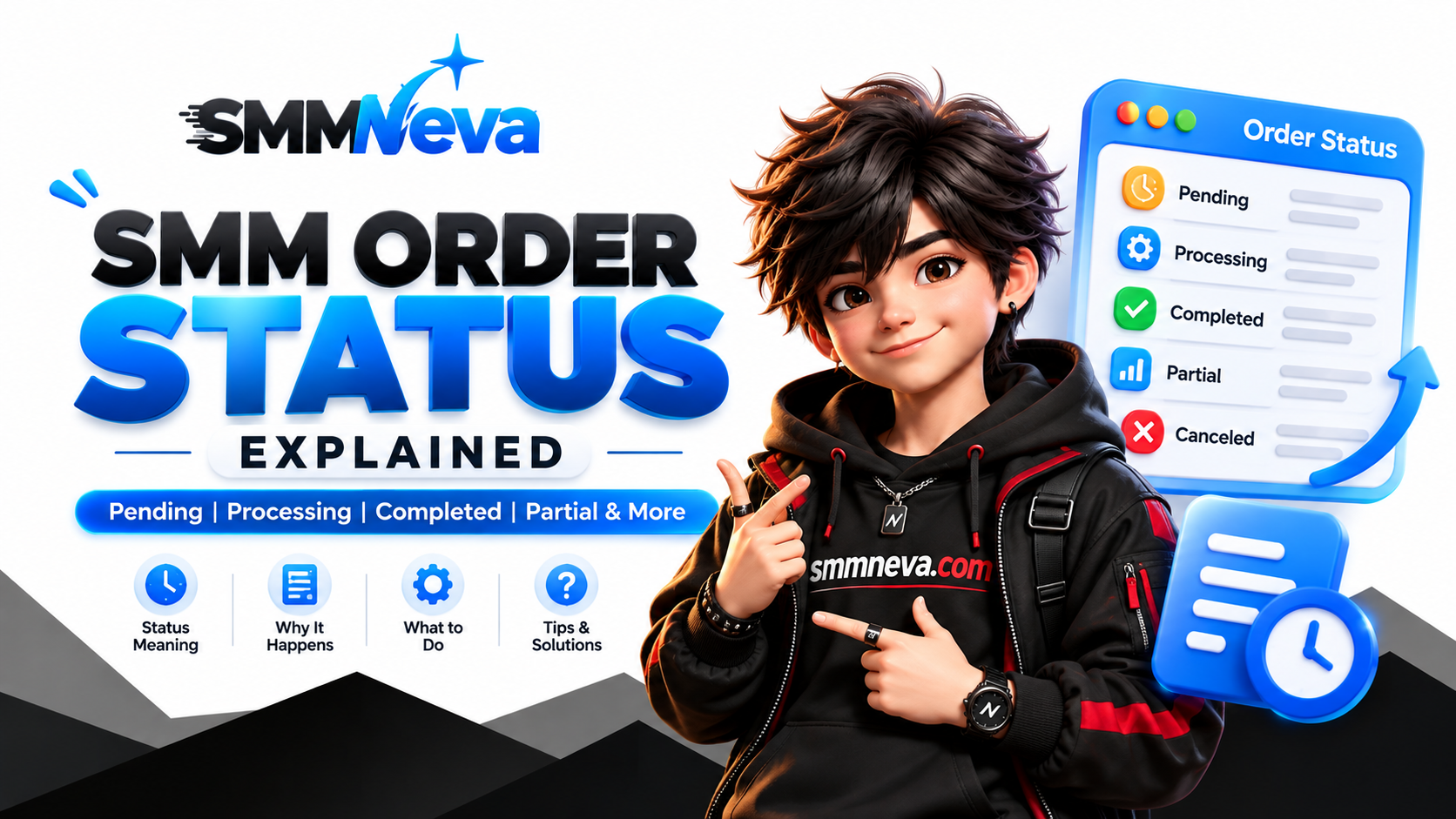
SMM Order Status Explained: What Pending, Processing, Completed & Partial Mean
When you place an order through an SMM panel, the order does not always move directly from “Pending” to “Completed.” Different statuses can appear while the service is being processed. Understanding these statuses can help you know what is happening with your order and when you need to take action.
In this guide, SMMNEVA explains the most common SMM order statuses, what each status means, and what you should check when an order does not progress as expected.
What Is an SMM Order Status?
An SMM order status shows the current processing stage of your social media service. Depending on the panel and service provider, you may see statuses such as Pending, Processing, In Progress, Completed, Partial, Canceled, or Failed.
Each status provides information about what is happening with your order.
Pending
A Pending status generally means that your order has been received but processing has not started yet.
This can happen when a service is waiting in the provider's queue, when the system is preparing the order, or when the service requires additional processing time.
If an order remains pending for an unusually long period, checking the service description and contacting support can help clarify the situation.
Processing
Processing usually means that the order has entered the delivery stage.
For example, if you ordered followers, views, likes, or another social media service, the system may be actively working on delivering the requested quantity.
Processing does not necessarily mean that the full quantity has already been delivered. It means the order is currently being worked on.
In Progress
Some SMM panels use “In Progress” instead of “Processing.” The exact terminology can vary between panels and service providers.
In most cases, the status indicates that the order is actively being delivered or handled by the service system.
Completed
A Completed status generally means that the system has finished processing the order according to the service's delivery conditions.
For example, if you ordered a specific quantity of a social media service and the system successfully processed the requested amount, the order may be marked as Completed.
Always check the service description because delivery behavior and completion conditions can vary between services.
Partial
A Partial status means that only part of the requested order was delivered or processed.
For example, if an order was placed for 10,000 units but the system could process only 8,000, the order may be marked as Partial depending on the provider's system.
Partial orders can happen for different reasons, including service limitations, changes on the target platform, or the provider being unable to complete the remaining quantity.
Canceled
A Canceled status means the order was stopped and will not continue processing.
This may happen because a service is unavailable, the target link is invalid, the provider cannot process the order, or another service-specific issue occurred.
If you receive a Canceled status, review the service description and order details before placing the same order again.
Failed
A Failed status generally indicates that the system could not successfully process the order.
Possible causes can include an invalid target link, unavailable service, technical problems, or restrictions affecting the requested service.
Why Can an SMM Order Take Longer Than Expected?
Delivery time depends on the specific service. Some services can start quickly, while others require more time because delivery is gradual or because the provider has a processing queue.
External platform changes can also affect delivery speed. Social media platforms frequently update their systems, which can influence how third-party services operate.
Should You Place Another Order While the First One Is Processing?
It is usually better to check the existing order status and the service description before placing another order for the same target.
Creating multiple overlapping orders can make it harder to track delivery and may produce an unexpected final quantity.
What Should You Check Before Contacting Support?
- Order ID
- Service ID
- Target link
- Ordered quantity
- Current order status
- Order creation time
- Service description and delivery information
Providing these details allows support teams to understand the order more quickly.
How to Avoid Common SMM Order Problems
- Read the complete service description before ordering.
- Use the correct target link.
- Check minimum and maximum order limits.
- Review the stated delivery speed.
- Check refill or replacement conditions when available.
- Avoid placing duplicate orders while an earlier order is still processing.
Final Thoughts
Understanding SMM order statuses makes it easier to track your services and determine whether an order needs attention. Pending, Processing, Completed, Partial, Canceled, and Failed each describe a different stage or outcome of an order.
Before contacting support, always check the order ID, service description, target link, quantity, and current status. This can make troubleshooting faster and help you understand what is happening with your order.
At SMMNEVA, you can check your order information directly from your account and review the service details before placing an order.